📲 IXE
Games
Apps
Español
Português
English
☰
✕
Games
Apps
Español
Português
English
Story Match
Adventure
Dinosaurs for kids – Jurassic
Education
Grand Theft Auto VI: Pre Order & Review
Action
slither.io
Arcade
Scary Teacher 3D
Action
Temple Run 2
Adventure
Royal Kingdom
Adventure
Magic Tiles 3
Arcade
8 Ball Pool
Arcade
Talking Tom Gold Run
Arcade
Bubbu – My Virtual Pet Cat
Girl games
Kick the Buddy: Second Kick
Simulation
Zooba: Fun Battle Royale Games
Action
Coin Master
Adventure
Gacha Life
Role playing
Call of Dragons
Action
My Talking Tom 2
Arcade
Roblox
Action
League of Legends: Wild Rift
Action
Sonic Runners Adventure game
Adventure
Fortnite
Action
Clash of Clans
Action
ABC Kids – Tracing & Phonics
Education
LogicLike: ABC & Math for Kids
Education
Math & Logic games for kids
Education
Math Quiz
Education
Kids Educational Games Toddler
Education
Ben10 vs Zombie
Action
Ben10 Cannonbolt
Action
🔥 HOT
Subway Surfers
Action
Spiderman Adventure
Adventure
🔥 HOT
Minecraft
Adventure
Spiderman vs Doctor Octopus
Action
Wedding Barbie Dress Up
Dress Up
Sweet Girl Mia Dress up
Dress Up
Pony Care
Girl games
City Taxi Driver
Racing
Spider Super Hero Coloring
Girl games
Baby Hazel Winter Dressup
Dress Up
Winx Puzzle
Girl games
Winx Colouring
Girl games
Barbie Cake Master
Cooking games
Power Rangers Dress Up
Dress Up
Tom & Jerry Run
Arcade
VEX 6
Puzzle
Hay Day
Simulation
Brawl Stars
Action
Pokémon GO
Adventure
Assetto Corsa
Racing
Dirt Rally 2.0
Racing
Forza Horizon
Racing
Forza Motorsport
Racing
BeamNG drive
Racing
Fireboy and Watergirl
Adventure
🔥 HOT
Sprunki
Arcade
Overwatch
Shooter
Counter-Strike
Shooter
Valorant
Shooter
Dragonsweeper
Action
Super Bowmasters
Arcade
Memory Match Lite
Arcade
Neon Shot
Arcade
Neon Drift Car
Racing
Snake Game
Arcade
Tic Tac Toe
Arcade
AquaPark.io
Girl games
🔥 HOT
Moto X3M Bike Race
Racing
🔥 HOT
MECCHA CHAMELEON
Action
Donut Ready Business Tycoon Game
Simulation
Scary Granny
Simulation
Fire Truck Driving Simulator
Racing
Extreme Car Driving Simulator
Simulation
Nitro Speed Car Racing
Racing
My Leopard Baby Care
Dress Up
Tile Match Mania Triple Match
Puzzle
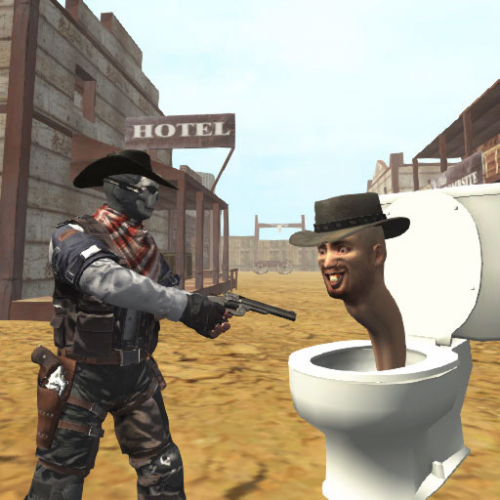
Cowboy vs Skibidi Toilets
Shooter
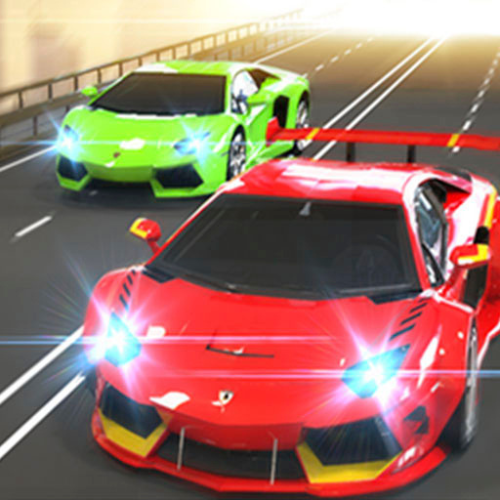
Super Car Racing
Racing
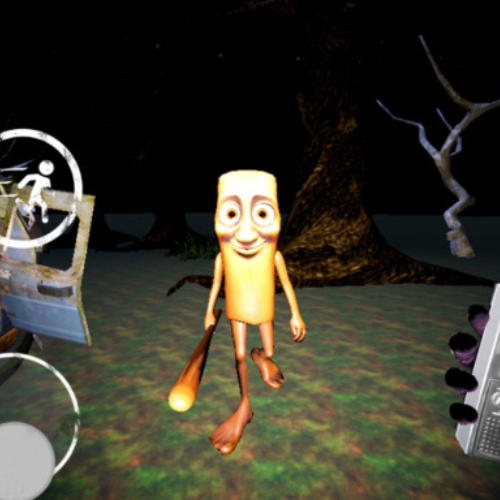
Tung Tung Tung Tung Sahur
Shooter
MR RACER : Car Racing
Racing
⭐ TOP
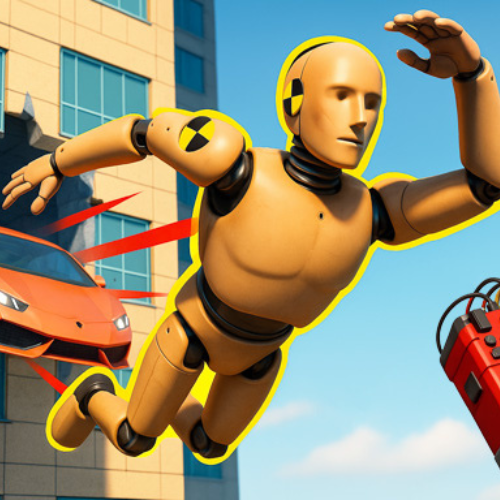
Body Drop
Racing
Scroll to Top